
Keep synthetic traffic out of your analytics
Squoosh hides its synthetic shoppers from your analytics and ad dashboards, so your reports reflect only real customers. This is on by default — you don't add any filters or audience rules to turn it on.
Blocking happens in the browser before any tracking data is sent, so the events that would normally create a visit are never recorded in GA4, Shopify, or your ad platforms. That is why there is nothing to configure on the analytics side.
You manage it under Settings → Analytics & Privacy, in the section labeled Control how synthetic traffic is handled.
The controls
The section has one toggle, one scan action, and a third toggle that appears only after you scan.
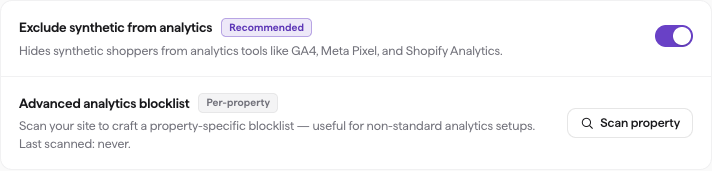
Settings → Analytics & Privacy — Exclude synthetic from analytics is on by default.
| Control | Type | Default | What it does |
|---|---|---|---|
| Exclude synthetic from analytics | Toggle | On (Recommended) | Hides synthetic shoppers from analytics tools like GA4, Meta Pixel, and Shopify Analytics. |
| Advanced analytics blocklist | Scan action | Not scanned | Scans your site to build a property-specific blocklist for non-standard analytics setups. |
Exclude synthetic from analytics is the recommended setting and covers most stores on its own. Leave it on unless you have a reason to turn it off.
Settings save as you change them. You'll see Saving… and then Saved. below the section.
Build a property-specific blocklist
Use this if your site has a non-standard analytics setup and you want tighter coverage than the default block.
- In the sidebar, click Settings, then open Analytics & Privacy.
- Under Advanced analytics blocklist, click Scan property.
- Wait for the scan to finish. The badge shows Up to date with the last-scanned time.
- To refresh later, click Re-scan.
You need an active property to scan. If none is connected, the section prompts you to connect one in the Properties tab first.
Block functional widgets
After a scan, a third control appears: Block functional widgets too. It also blocks third-party widgets such as Forter, Affirm, Klaviyo popups, and chat agents, in addition to analytics.
This control is aggressive and off by default. It can break checkout or trigger a CAPTCHA, so turn it on only if a specific widget is interfering with your experiments, and re-test checkout afterward.
Testing platforms
After a scan, Settings lists the client-side testing platforms it found on your site — Convert, VWO, Optimizely, AB Tasty, Kameleoon, Dynamic Yield, Adobe Target, Monetate, Insider, Intelligems, Shoplift or GrowthBook — with the host each was seen on.
Squoosh normally blocks these platforms' scripts along with the rest of your analytics, so your live experiments never count synthetic visits. Two things change that:
- When an experiment uses a platform — you picked it under How do you ship variants?, or you pasted its preview links as the two URLs — Squoosh lets that platform's delivery script load automatically for that run, so the variant actually renders. Its separate tracking endpoints stay blocked (see the note below on platforms that report from the same host they deliver from).
- Turn a platform's toggle on to let its script run in every shopper session, so shoppers see your live experiments the way real visitors do. Leave it off (the default) to keep shoppers on the page with no experiments applied. While it is on, a Two URLs test on this property must use that platform's preview links for both arms (or its vendor mode) — otherwise the live experiment would bucket shoppers at random and Squoosh refuses to launch. A recognized preview-link pair excuses only the platform it pins — every other platform that is switched on still has to be turned off for that launch.
A few platforms (VWO, Adobe Target, Monetate) report on the same host they deliver from; Squoosh still lets them run for experiments that use them, but does not offer "always allow" for them, because that would also send shopper sessions to their own analytics.
Platforms marked Verified have been exercised against a live site. Detected platforms follow the vendor's documentation; if a run on one still reports that the variant did not render, contact support@squoosh.ai.
Session cookies
Session cookies are set in every shopper session and page capture before the page runs its own scripts. The usual reason is cookie consent: some testing platforms only remember which variation a visitor saw after the consent dialog is accepted, so without your consent cookie a multi-page variant can change on every page. Add the cookie your site sets when a visitor accepts (its name and URL-encoded value, which you can copy from your browser's developer tools), and shoppers behave like consented visitors.
Values must be URL-encoded and cannot contain spaces, ; or ,. Up to 10 cookies per property.
What's covered
The default block applies to the major analytics and advertising platforms:
| Category | Platforms |
|---|---|
| Web analytics | Google Analytics (GA4), Shopify Analytics, Microsoft Clarity, Hotjar |
| Tag management | Google Tag Manager |
| Advertising | Google Ads, Meta Pixel, Bing Ads, TikTok, Snapchat, LinkedIn |
| Customer data | Klaviyo, Amplitude, Mixpanel, Segment, FullStory, Heap |
This list is updated regularly as new platforms are identified.
Limitations
A few setups can still let a synthetic session reach your analytics.
Server-side tracking. Some platforms send analytics data from your server, not the browser. Squoosh blocks in the browser, so it can't intercept those events. Sessions with (not set) geography during an experiment are the likely sign of this. You can exclude them in GA4 with a custom audience filter.
Klaviyo forms. Squoosh blocks Klaviyo tracking to keep your email analytics clean. As a side effect, synthetic shoppers may skip Klaviyo popups, signup forms, or back-in-stock alerts. This doesn't affect your data — the shopper skips that step and moves on.
Custom analytics proxies. If your site routes tracking through a custom domain instead of the platform's default endpoint, it may not be on the default blocklist. Contact support at support@squoosh.ai and we'll add it.
Verify it's working
Open your GA4 Realtime report while an experiment is running. You should not see active users climb in step with the synthetic shoppers. If you do, click Scan property under Settings → Analytics & Privacy to build a property-specific blocklist, then contact support at support@squoosh.ai.