
Connect Shopify
Connecting Shopify imports your store's commerce data so Squoosh can calibrate AI shoppers against your real customers. Shopify is one of two calibration sources, alongside Google Analytics. A property uses one source at a time.
Analytics access requirements
Shopify analytics queries require the read_reports scope and Level 2 protected customer data access. Installing the app alone does not prove both requirements are satisfied. If analytics access is denied, contact Squoosh support to confirm the app's access approval. A store owner cannot resolve an app-level approval issue by repeatedly reinstalling it. Shopify query requirements.
Squoosh reads aggregate session counts by device, country, and referrer type, plus aggregate order counts and sales totals. These queries do not request individual customer names, addresses, phone numbers, or email fields. Shopify still requires Level 2 access for the query itself. Protected customer data requirements.
Current analytics limitations
- The channel mix uses Shopify's referrer type with an existing domain-based mapper. Some categories can be misclassified, including organic traffic appearing as Referral. Shopify sessions schema.
- The conversion input divides orders across sales channels by online-store sessions. Stores with POS or other channel sales can see an overstated conversion rate. This is not equivalent to Shopify's online-store checkout conversion rate. Shopify sales schema.
- The current 30-day request includes both boundary dates and can cover 31 calendar dates. Shopify date boundaries.
These measurement limitations remain under review. Keep them in mind when comparing Squoosh with Shopify reports.
Connecting is two steps
- Install the Squoosh app on your store. This imports storefront events and commerce conversion metrics.
- Make Shopify your calibration source. A toggle in the connected store's row switches calibration to Shopify.
Installing the app makes commerce data available. It does not change which source calibrates your shoppers until you turn on the toggle.
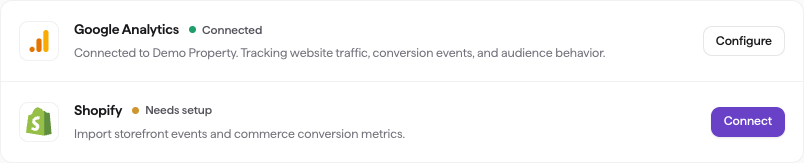
The Integrations page. The Shopify row shows Install app until the app is installed and linked.
Install the Squoosh app
- In the sidebar, click Integrations.
- In the Shopify row, click Install app.
- In the Connect Shopify dialog, type your store domain in the Store domain field. Enter the slug (for example,
your-store) or the full*.myshopify.comdomain. Squoosh fills in the.myshopify.comsuffix. - Click Install app. Squoosh redirects you to Shopify.
- In Shopify, approve the permissions Squoosh requests, then install the app. Squoosh reads theme metadata and generates preview URLs for experiments.
When you return to Squoosh, the Shopify row shows Connected to {your store}.
Note
If the row shows Install pending or the button reads Complete setup, the app is installed but not yet linked to a property. Finish linking the store to a property to complete the connection.
To open your store's Shopify admin later, use the Admin button in the connected row. To change which store is linked, click Disconnect, then install again with the new store domain.
Make Shopify your calibration source
In the connected Shopify row, turn on Shopify Analytics source. Squoosh then models your AI shoppers on your store's real customer behavior, so experiment results reflect your actual audience.
A property uses one calibration source at a time. Turning on Shopify Analytics source disconnects Google Analytics, and turning Google Analytics back on clears the Shopify source. You can have one or the other, not both.
Once Shopify is the calibration source, the AI shoppers page reads Traffic mix matched to Shopify and shows the match between your recorded traffic and the AI shopper pool, with a per-attribute breakdown in the Calibration view.
Test a Shopify theme change
You don't need a special mode to test a theme change. Publish the change to an unpublished theme, then run a standard Two URLs experiment:
- Use the live theme's URL as your Control page (A).
- Use the unpublished theme's preview URL as your Variant page (B).
The change is never published to live shoppers while you test it. For the full walkthrough, see Test a Shopify theme change.
AI shoppers and your Shopify data
AI shoppers do not appear in your Shopify Analytics. Squoosh blocks its AI shopper traffic before it reaches your store's tracking, so your real conversion data stays clean with no setup from you. See Keep AI shopper traffic out of your analytics.
Troubleshooting
| Problem | What to do |
|---|---|
| Can't install the app | Ask a store admin to install it, or have your Shopify user granted permission to install and manage apps for the store. |
| Row shows Install pending | The app installed but isn't linked to a property yet. Finish linking the store to a property. |
| Wrong store linked | Click Disconnect, then Install app again and enter the correct store domain. |
| Analytics access denied | Ask Squoosh support to check read_reports and Level 2 customer data access. |
| Shop forbidden, frozen, locked, or inactive | Open Shopify admin to resolve account restrictions or billing, or contact Shopify support. Automatic retries cannot resolve these conditions. |
| Analytics query rejected | Contact Squoosh support. A syntax or query-cost error requires a query change; retrying the same query will not fix it. |
| Rate limited or temporarily unavailable | Try again later. Shopify can throttle GraphQL requests even when there is no HTTP 429 response. |
API version maintenance
The shared analytics client defaults to API version 2025-10, with an operator-controlled SHOPIFYQL_API_VERSION override. Shopify lists that default as accessible until October 16, 2026 at 15:00 UTC. After retirement Shopify can serve a newer version automatically. Squoosh operators need to review the version pin before that date. The deployment override has not been verified in this audit. Shopify API versioning.