
Connect Google Analytics
Connecting Google Analytics (GA4) gives Squoosh a source to calibrate your AI shoppers against. Squoosh reads your recorded traffic and shapes the shopper pool to match your real visitors, so experiment results reflect your actual audience. This page covers what the connection does and how to set it up from the Integrations page.
What the connection does
Google Analytics is a calibration source. When it's connected, Squoosh reads your recorded traffic and builds AI shoppers whose mix of device, traffic source, and geography matches your real visitors.
The connection is not required to run a test. Squoosh can build a pool from a general e-commerce mix without it. Calibrating to your own traffic is what makes the shoppers, and the results, specific to your store. For how the calibrated pool behaves and how the match is measured, see AI shoppers.
Connect Google Analytics
Sign in with a Google account that already has access to the property. You need Viewer access or higher on the GA4 property to select it.
- In the sidebar, click Integrations.
- In the Google Analytics row, click Connect.
- In the dialog, select your Account.
- Select the Property to calibrate against.
- Choose the Conversion event. This is the event Squoosh treats as a conversion when calibrating (for example
purchaseororder_placed). There's no default; you name your real conversion event. - Click Confirm.
The row then shows Connected to {property name}.
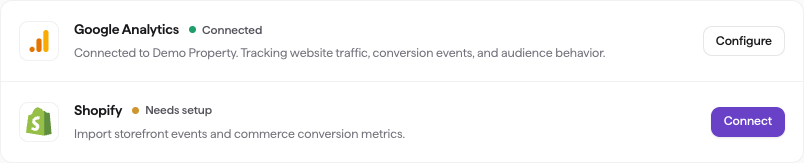
The Integrations page. Google Analytics reads Connected once a property is linked; use Configure to change it.
The connection saves only after you select a property, choose a conversion event, and confirm. Selecting the account alone does nothing.
Note
A property uses one calibration source at a time. Connecting Google Analytics clears Shopify Analytics as the source, and turning on Shopify Analytics clears Google Analytics. Switch deliberately. You can have one or the other, not both.
Calibrate your shoppers
Connecting Google Analytics makes a source available; it does not build the shopper pool on its own. After you connect, open AI Shoppers and calibrate, so the pool is shaped to your recorded traffic. See Calibrate AI shoppers for the steps.
Change or remove the connection
In the Google Analytics row:
- Click Configure to change the account, property, or conversion event.
- Click Disconnect to remove the connection. Squoosh stops using Google Analytics to calibrate shoppers for this workspace. You can reconnect at any time.
Connect during setup
You can also connect Google Analytics while adding a property during first-time setup. That flow confirms with Continue (or Create for a new property) instead of Confirm, but connects the same way. See Set up Squoosh.
Data and limits
Squoosh reads aggregate device, country, traffic-channel, session, and selected key-event counts through Google's read-only Analytics access. This connection does not change your GA4 configuration.
The reporting window ends yesterday and uses the GA4 property's reporting time zone, following Google's date-range rules. Device and country distributions normally count active users; the session channel distribution counts sessions. These totals can differ.
GA4 key events may count every occurrence within a session. The selected event's counting method therefore affects how its count compares with sessions. See Google's key-event counting methods.
The existing reporting path reads up to 200 rows per dimension before grouping smaller buckets. Missing dimensions or a conversion signal without sessions are omitted; they are not replaced with estimated data. A connected property alone does not confirm that every report dimension is available.
Troubleshooting
| Problem | What to do |
|---|---|
| No GA4 properties found | Ask a GA4 admin to grant you access (Viewer or higher), then sign in with that Google account. |
| Property access denied | Ask a GA4 admin to grant the connected account access to the selected property. |
| Missing Analytics scope | Reconnect the Google account and grant Google Analytics read access. |
| Authorization expired or revoked | Reconnect the Google account used for this property's delegation. |
| Invalid report or date range | Check the selected property and reporting configuration. Repeating the same invalid request will not correct it. |
| Quota exhausted or Google temporarily unavailable | Retry later. |
| Wrong Google account | Use Use different account in the sign-in step to switch accounts. |
Related
- Google Analytics Data API error reference.
- Google Analytics reporting API.
- Google OAuth offline access.
- AI shoppers: how the calibrated pool behaves and how the match is read.
- Connect Shopify: the other calibration source.
- Keep AI shopper traffic out of your analytics: AI shoppers stay out of your GA4 and other dashboards.